
01 · ARCHITECTURE
Spatial Reveal
Slow push, strong depth, stable geometry.
Turn a still frame into cinematic motion while protecting the subject, composition and visual identity that matter.
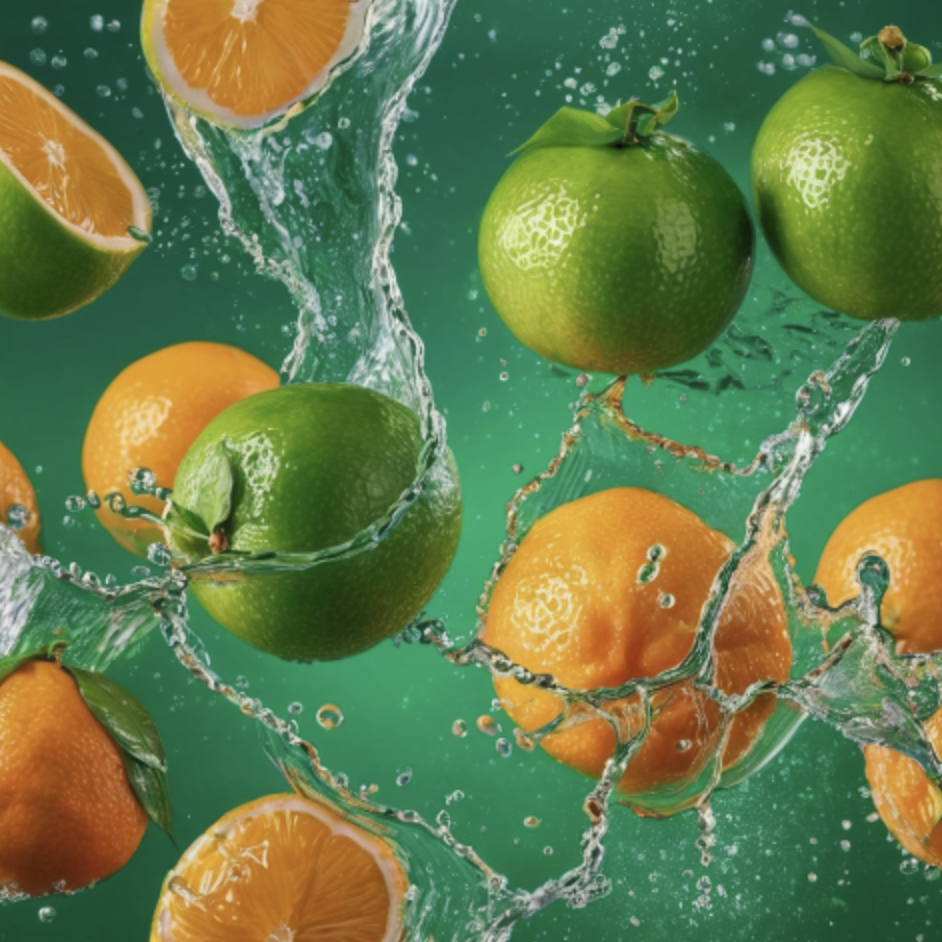
Hover a study to preview the motion. These blocks are intentionally easy to duplicate when you add more media later.
Slow push, strong depth, stable geometry.
Shape lock, premium light, restrained orbit.
Directional camera movement with stable structure.
Minimal motion for identity and detail preservation.
Subtle world motion while the hero remains stable.
Clean foreground separation and product-first direction.
Tool67 Image to Video Pro turns model-supported visual references into a generated video. You choose the video model, duration, aspect ratio and lens path, while the prompt describes subject motion, camera behavior and what must stay visually consistent.
The Pro page emphasizes controlled camera direction and frame preservation. It is designed for users who want a more deliberate shot rather than only generic motion.
The selected model determines the image-reference limit. Use the first image as the primary visual reference when supported; additional images can support identity, style or scene consistency.
The workspace keeps Model, Duration, Size and Lens Path. These are the highest-value controls for a compact image-to-video workflow.
The page loads the enabled video models and shows the current generation cost for the selected model and duration before you generate.
The result area is hidden initially. After Generate is clicked, it opens below the workspace with a dark progress overlay, timer and spinner, then shows the completed video.
Describe the desired subject motion, camera behavior, environmental movement and the elements that must remain unchanged, such as identity, product geometry or architecture.
Use a clear source with a well-defined subject and readable depth. Extremely blurred, cropped or structurally ambiguous images can produce less stable motion.
Yes. When generation finishes, a download arrow appears at the lower-right of the result video.